-
Ceci est un resume simple de ce que nous avons fait dans notre class TP SE
realiser avec YAHIA Ilyes
Linux in Windows :
-
ce sont quelques façons d'utiliser Linux si vous avez un système d'exploitation Windows sur votre PC
Linux avec WSL2 :
-
J'ai mentionne cela comme premier moyen car c'est le plus
-
All you had to do is to go in microsoft Store and type any linux distrubution you want
-
Then you can follow this link to install wsl in your computer
Using a VM :
-
Ceci est un resume simple de ce que nous avons fait dans notre class TP SE
realiser avec YAHIA Ilyes
Linux in Windows :
those are some ways to use Linux If you have a windows OS in your PC
Linux with WSL2 :
- As far as i know , i think this is the simplest way to start using linux right now ,
all you have to do is go to Microsoft Store and type in any linux distro you want to install .
-
then You need to follow this link to install and allow wsl in your PC
Linux in VM :
-
Visit this website to know how to do it
Dual-Boot Linux and Windows :
-
For more imformation Visit this WebSite
-
To try Linux Distro view this Website
→ To see other ways Visit this Link
Linux Command :
- to open a terminal in linux type the following shortcut " Ctrl + Alt + t" . If this shortcut didm't work , you need to add it manually (Follow this link) , Or you can simply search about it" by typing Terminal in the Search Box or Whatever " .
exit :
- for exiting a terminal type this
exit
poweroff / shutdown :
-
poweroff/shutdownfor shuting down the computer , Justshutdowncommand take 60 second to turnoff the computer to make it immadiattly you can useshutdown 0for more about
shutdownseeman shutdown
man :
man→ " Display a command’s manual page "
man *command*
where "command" is the name of the command to view .
man command simplly show you what you can do with a command
- to know more type
man man:

- this page will pop up

- to walk throw the documentation use your mouse scroll 🖱️ or the arrows keys ⬆️ ⬇️
and you can always see this message in Manual page " it's all down the terminal "

which simply mean you never get lost in Linux 👍🏼
PWD :
-
pwd→ " Print Working Directory " -
The filesystem tree :
- let take for example this image
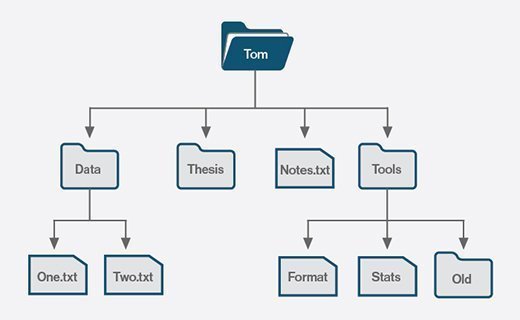
we can simply transfer it into this :
-
Tom
- Data
- Thesis
- Note.txt
- Tools
-
← this mean a file
-
← and this means an empty folder
-
← and this a none empty folder
👍🏼
-
let say we are in the directory " Data " , if we type
pwdwe will see " Tom/Data " , sopwdprint the whole path of your working directory
For more type
man pwd
cd :
cd→ " change working directory "
cd dirPAth
#change directory
- Here we will understand how filesystem tree work
let see this image :

if we are in / (root directory) and want to go to " pets" folder → cd home/sue/Pictures/pets
to go back one directory we type cd ..
or cd ../../ to go back two directories
- Example:
see cd --help for more .
cd or cd ~ → to go to home directory from whatever you are
cd / → root directory "where you can find system fils
ls :
→ " List directory contents "
- this will list what the folders and the files that are in your working directory
#for more information about ls
man ls
ls -l to list contents in long format
(Fils PERMISSIONS / owner / size / date created / name )
echo :
→ " display a line of text "
echo why we always print hello World for the first time
for printing values use this :
echo $PS1
p=1600 && echo mike tyson punch power is $i joule
to excute two command at once in linux just use
commmand1 && command2 && ... && commmandn
date :
→ " print or set the system date and time "
uname :
→ "print system information"
uname -a → -a is for all information
who :
→ " show who is logged on "
cat :

chmod -R *** ./ all the files of the current directory
PS1 :
PS1 → " Prompt String 1 "
this is mine

this is how to export it :
-
you need to go to the /.bashrc file and open it some code editor , i prefer to do that with vim
- type
sudo vim ~/.bashrc
- type
-
and type this command at the final of the file (of course change "
Ilyes" to you name )#put in the place of "I.Y" your name or whatever you want export PS1="\\e[0;32mI.Y\\$>\\e[m" -
if you did open this file with vim to insert you need to type "i" and to save and close it type "esc" key than write " :wq " than press enter .
-
to return to the default PS1 value go back to the file /.bashrc and remove the new value .
Finaly to know more about prompt design check The Linux Command Line: A Complete Introduction By William E. Shotts at " chapter 13" .
Comments
Post a Comment